3CX Support Portal
If you are using a PC or Mac, the Chrome browser is highly recommended.
Here is the link to log into the phone system from chrome. https://651vinyl.ky.3cx.us/#/login
Once logged in, you will see in the top right corner an icon that looks like a computer with an arrow. Click it to install 3CX onto your computer for easier access.
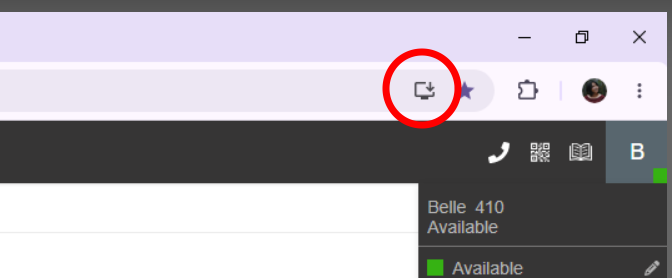
Or if you prefer you can install the Windows App by clicking HERE.
If using an Apple or Android device, you can search for the 3CX App. When using the apps for the first time, they will ask you
for a 3CX URL, use this: https://651vinyl.ky.3cx.us/ .
Use the extension number and password provided to you.
Be sure to make a test phone call to either extension 101 (Chris Riney \ IT Support) or someone else on your team.
3CX will ask for permission to use your speakers and mic, be sure to select yes and always.
If you have any issues, please submit a ticket below.
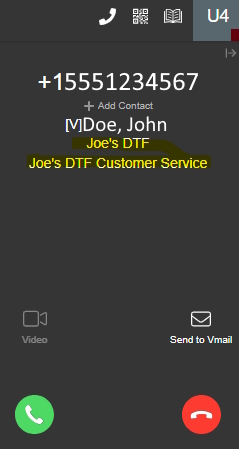
📞 Incoming Call — Answer the Right Company
- When a call rings, look at the company name shown on the phone screen.
- Answer using the correct company greeting for that name.
- If the caller ID/company looks wrong, submit a ticket so IT can fix the route/caller ID.
Submit a Support Ticket
Password resets, voicemail issues, wrong caller ID, new users, or any other problems must be submitted here.